 Visibility Scheduler
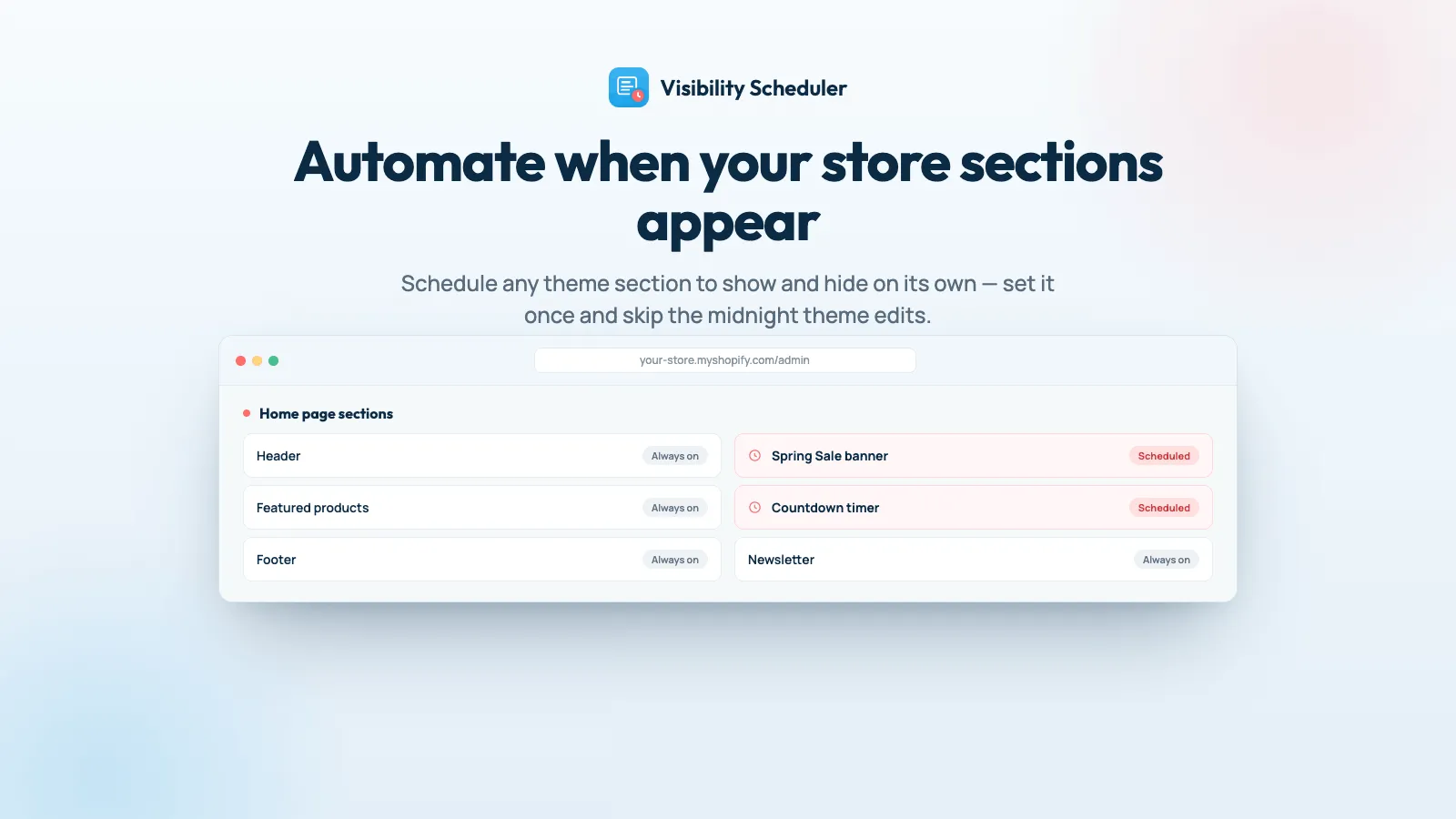
Avoid manual work by automating your sections visibility.
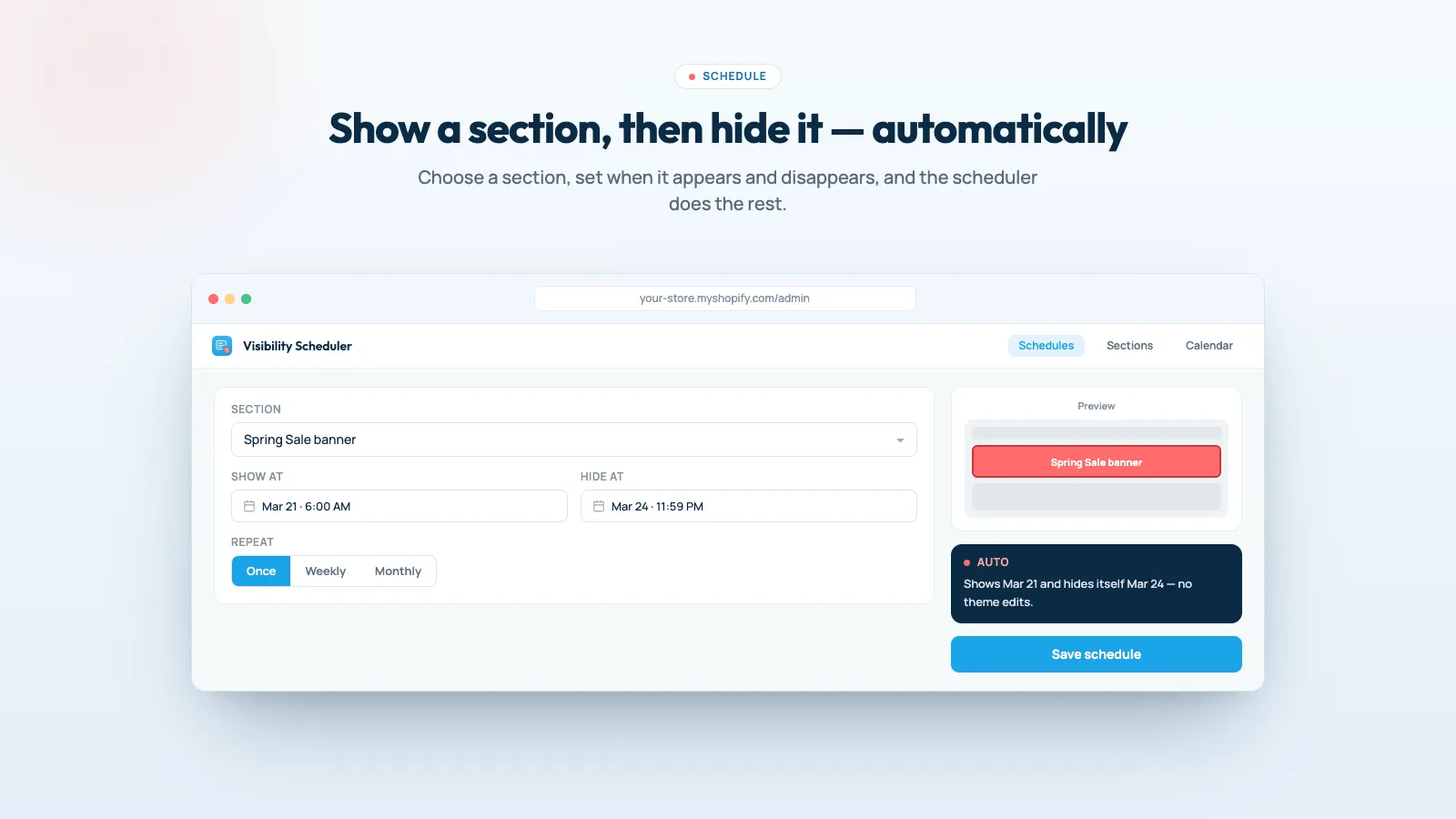
Schedule sections and blocks to show or hide at a specific time. Set a recurring campaign, including a weekly repeat, and schedule more than one section or block at once. In Flow, a timeline keeps every show and hide in order.
Everything you need
Section show and hide
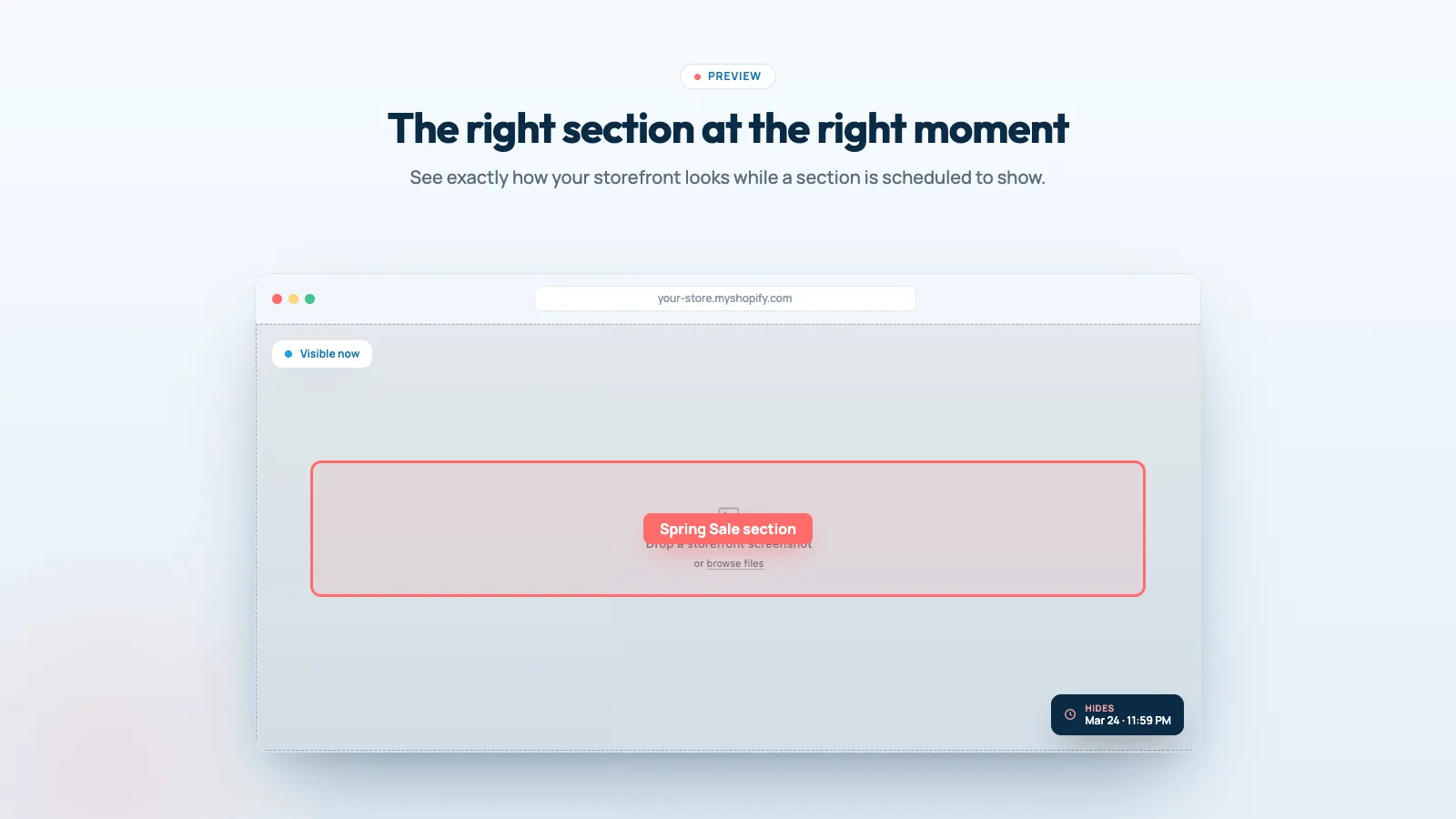
Schedule a section visibility campaign so the section shows or hides at a time you set.
Block visibility
Schedule blocks the same way, not only whole sections.
Recurring campaigns
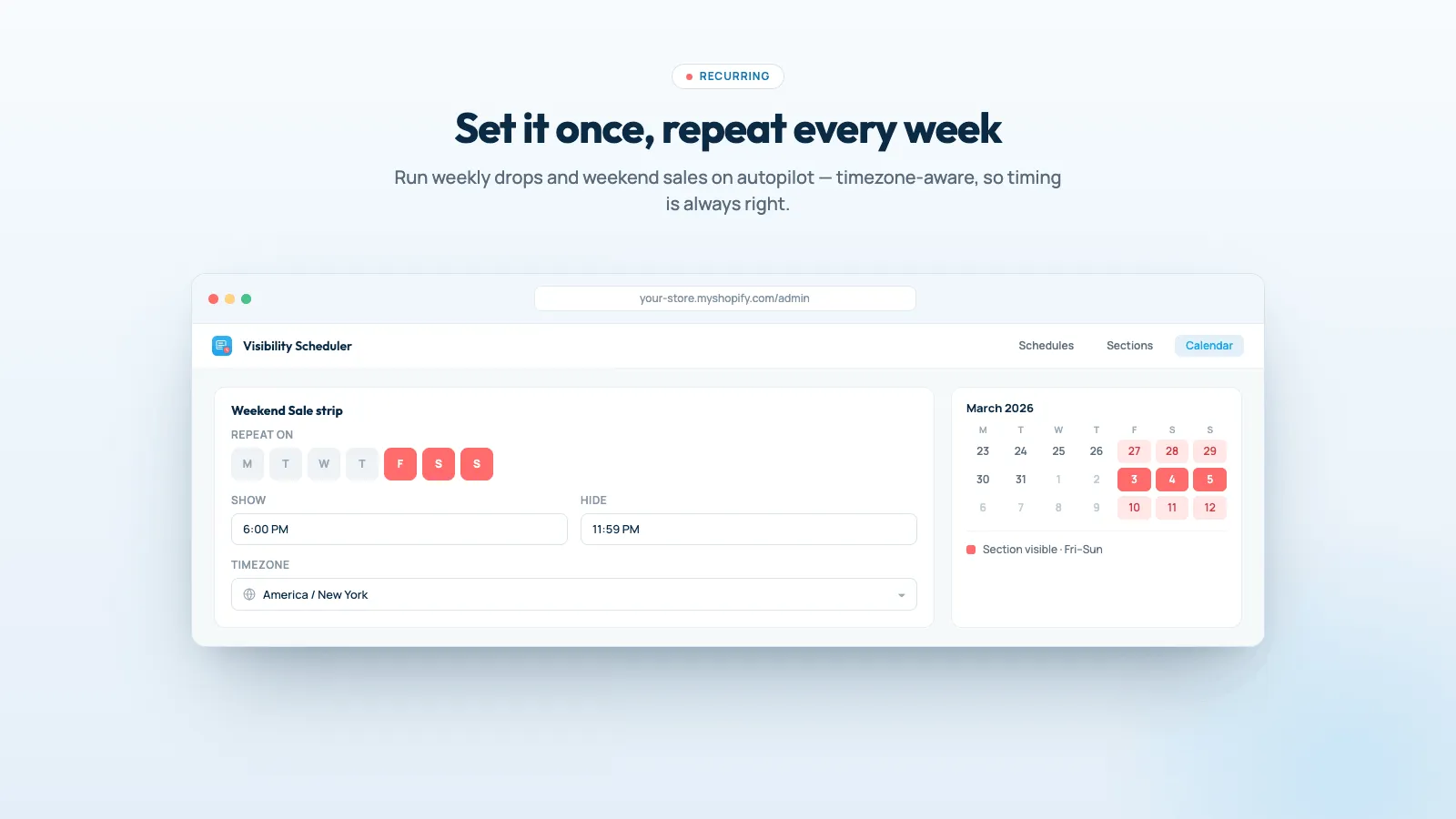
Set the campaign once and repeat it. A weekly repeat is on the listing. The app also repeats hourly, daily, bi-weekly, or monthly.
Several at once
Schedule multiple sections and blocks in one campaign.
One timeline
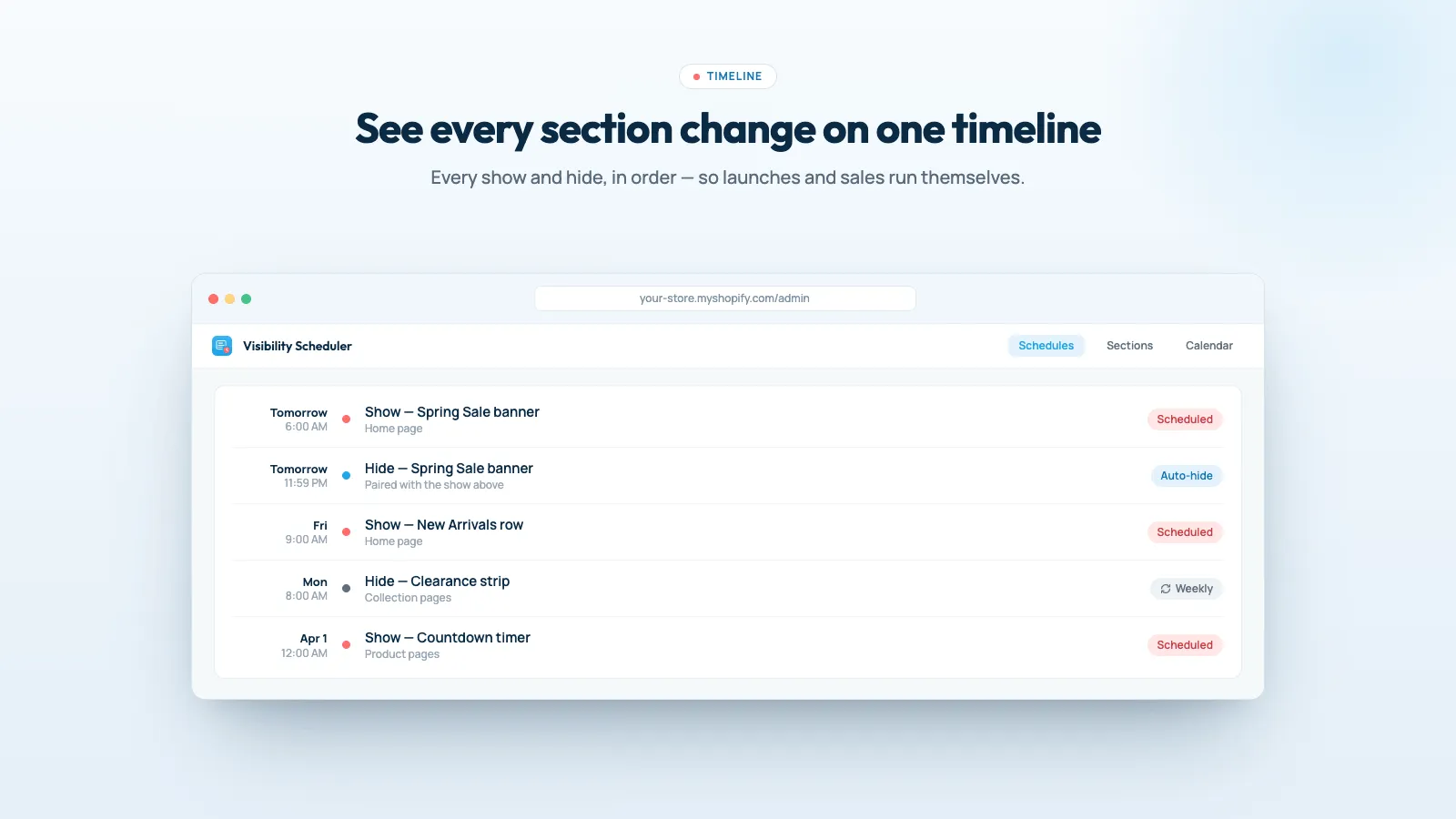
In Flow, see every show and hide in order, including what is still coming.
Sections you already have
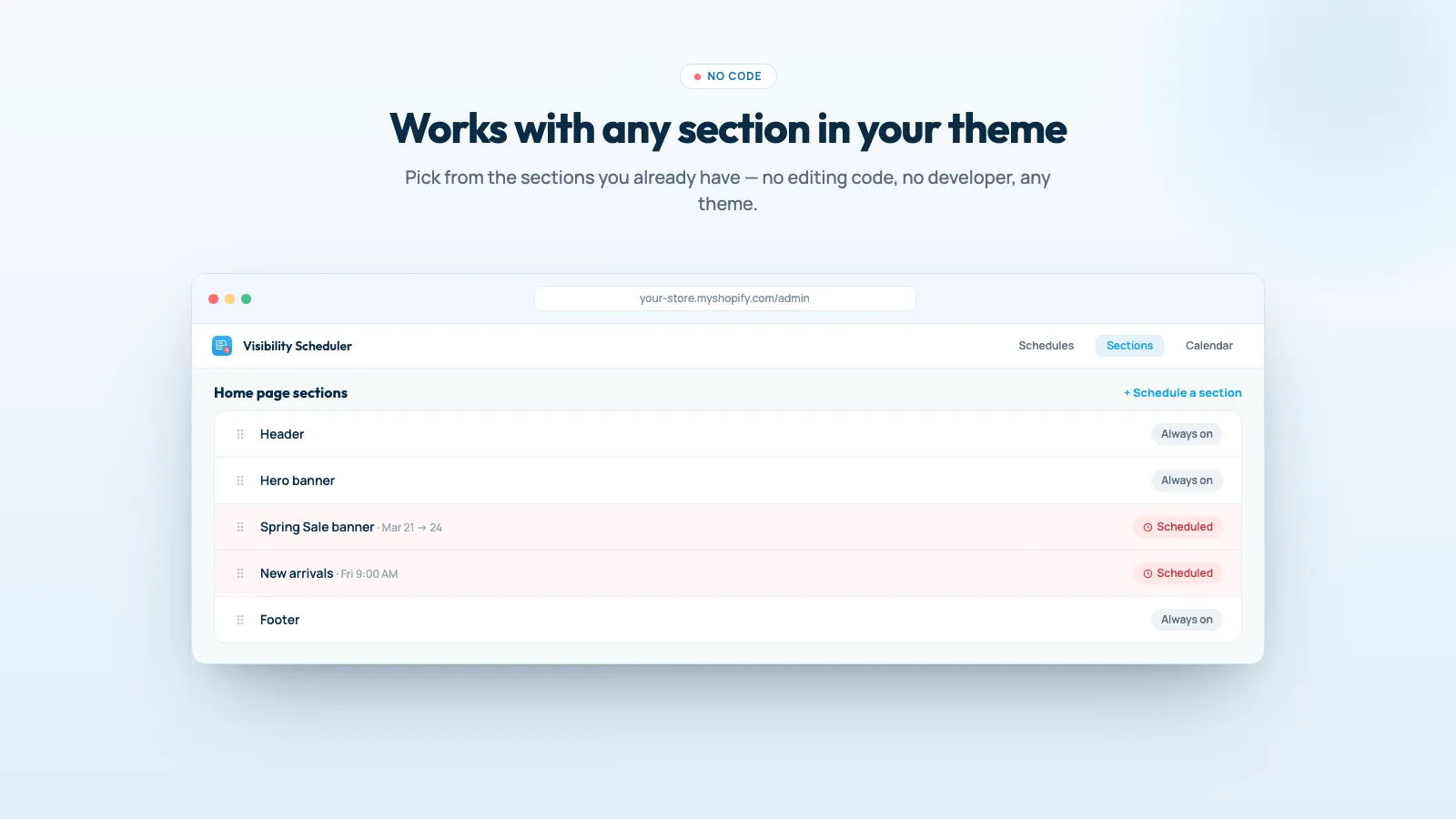
Pick a section that is already in the theme. Scheduling it does not mean editing theme code.
See it in action
Loved by merchants
“Great app! Makes scheduling theme visibility simple and saves a lot of time when managing store updates.”
Simple, transparent pricing
Free trial
Popular3 days
- ✓ 3-day free trial on the Shopify listing
- ✓ Current plan details stay on the listing
What changed
Changes that matter when you use Visibility Scheduler. A new note is added when something is ready for your store.
A warning before a show schedule
- If you set Show on a section or block that is already visible, the app tells you.
- Show does not hide it before that date. Hide it in the theme editor, or add an earlier Hide schedule.
Times follow the shop's timezone
- Schedule dates in the admin use your shop's timezone instead of UTC.
Show and hide on a timeline
- In Flow, Show Timeline lists each show and hide in the order it will run.
Show and hide in the settings panel
- Each section and block has Show and Hide in its settings.
- If it is already hidden, the panel says so.
Repeat every two weeks
- A recurring show or hide can repeat every two weeks.
Show or hide from the schedule
- Choose Show or Hide for a section or a block on the schedule, instead of editing the theme by hand at the deadline.
A campaign can repeat
- A schedule can be set to repeat, so the same show or hide does not have to be recreated each time.
Frequently asked questions
Is this the same app as Theme Scheduler? +
No. Visibility Scheduler shows and hides sections and blocks. Theme Scheduler is the separate listing for publishing a theme and scheduling the content inside a section.
Do I have to edit theme code? +
No. You schedule sections and blocks that are already in the theme. If a section should stay hidden until a Show time, hide it in the theme editor first, or add an earlier Hide schedule.
Does Show hide the section until that time? +
No. Show leaves the section as it is until that date. If it is already visible, the app warns you that Show does not hide it early.
Can a campaign repeat? +
Yes. Set a recurring campaign. The listing calls out a weekly repeat. You can also repeat hourly, daily, bi-weekly, or monthly.
Is there a free plan? +
The listing does not show a free plan. It offers a 3-day free trial. The current plan is on the Shopify listing.
Why did the app warn me that the section is already visible? +
You scheduled Show on a section shoppers can already see. Hide it first, or schedule Hide for the time it should leave.
Does this publish a different theme? +
No. It shows or hides sections on the theme you already use. Publishing a whole theme is Theme Scheduler.
The section showed on the wrong day. +
Open the schedule and read the next date. The repeat follows the store clock, not the clock on your laptop.
Can I hide the section on mobile only? +
Show and hide applies to the section. Use the theme's own visibility for a device if you need the section gone on phones only.
Can one schedule cover two sections? +
Create one schedule per section, with the same times. Then both move together.
One section stayed visible. +
That section was already visible, and its schedule only said Show. Add a Hide for the time it should leave.
Ready to try Visibility Scheduler?
Avoid manual work by automating your sections visibility