 Quick Notice
Create clear alerts to keep customers informed and unconfused.
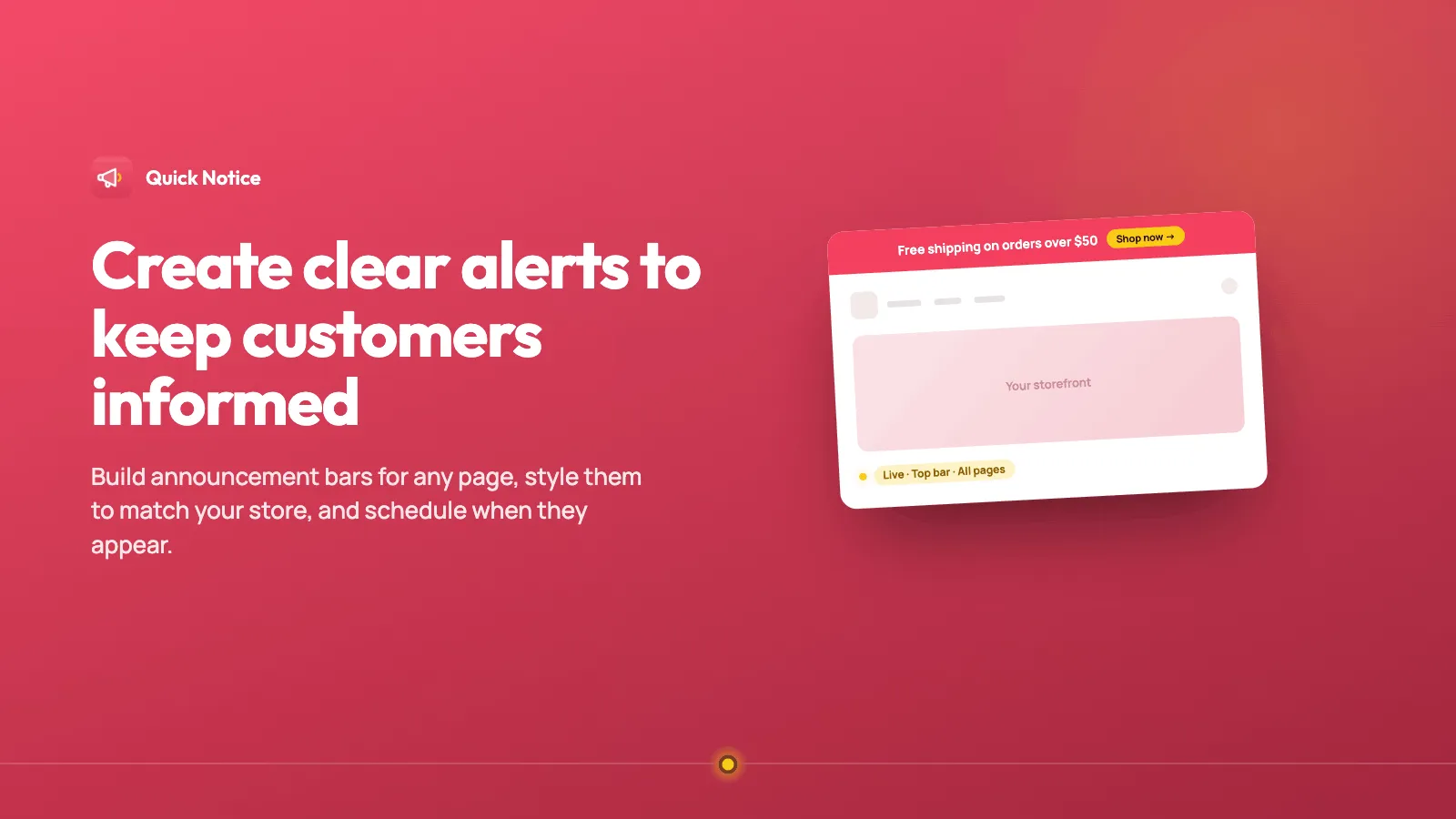
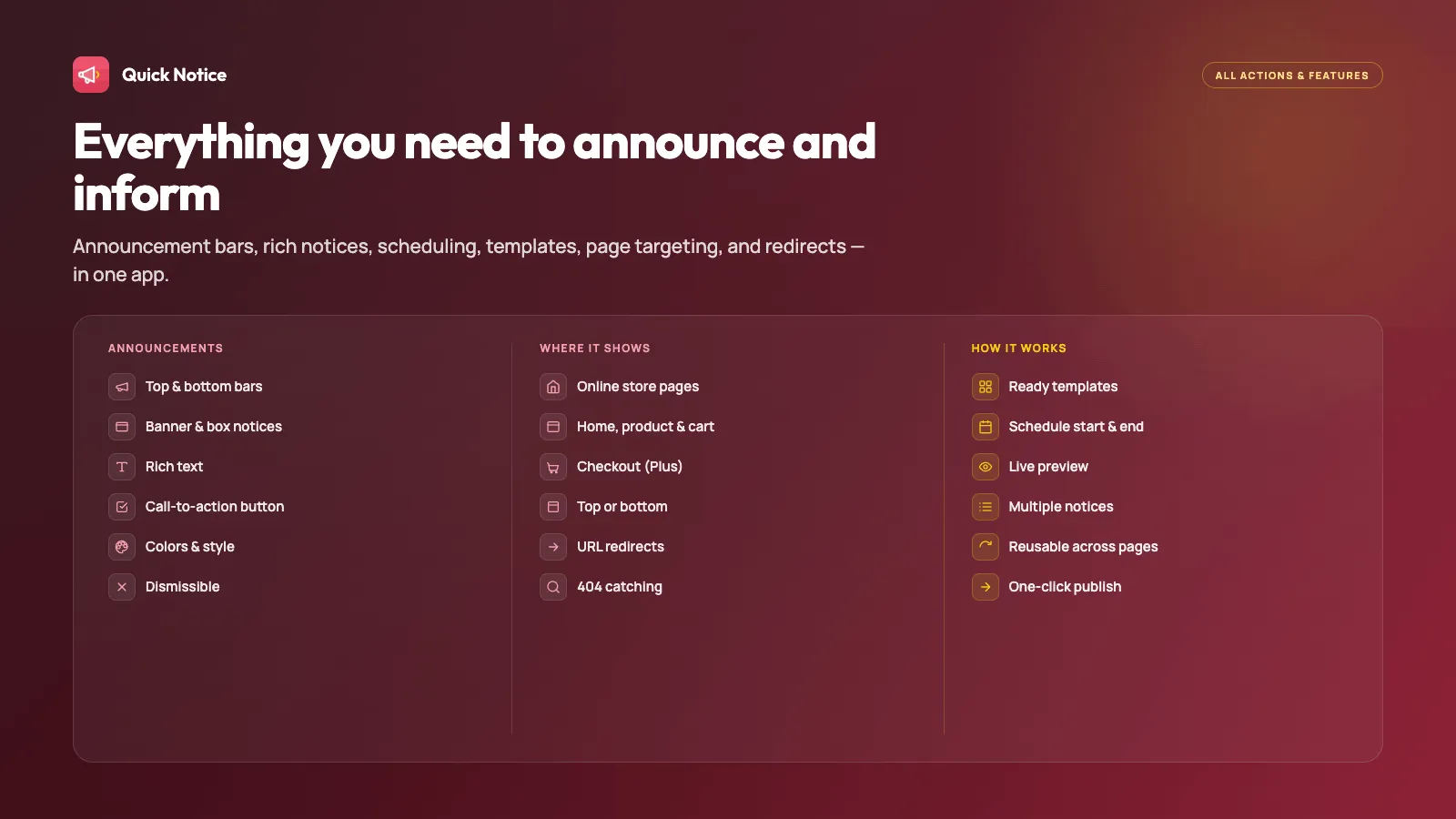
Quick Notice keeps customers informed and engaged. Share an order update, announce a promotion, or deliver a personalized alert. Style the notice to the store, show it on the storefront or in checkout, and set it up without theme code.
Everything you need
Real-time alerts
Share an order update, a promotion, or a note shoppers need now, on the storefront or in checkout.
Styled to the store
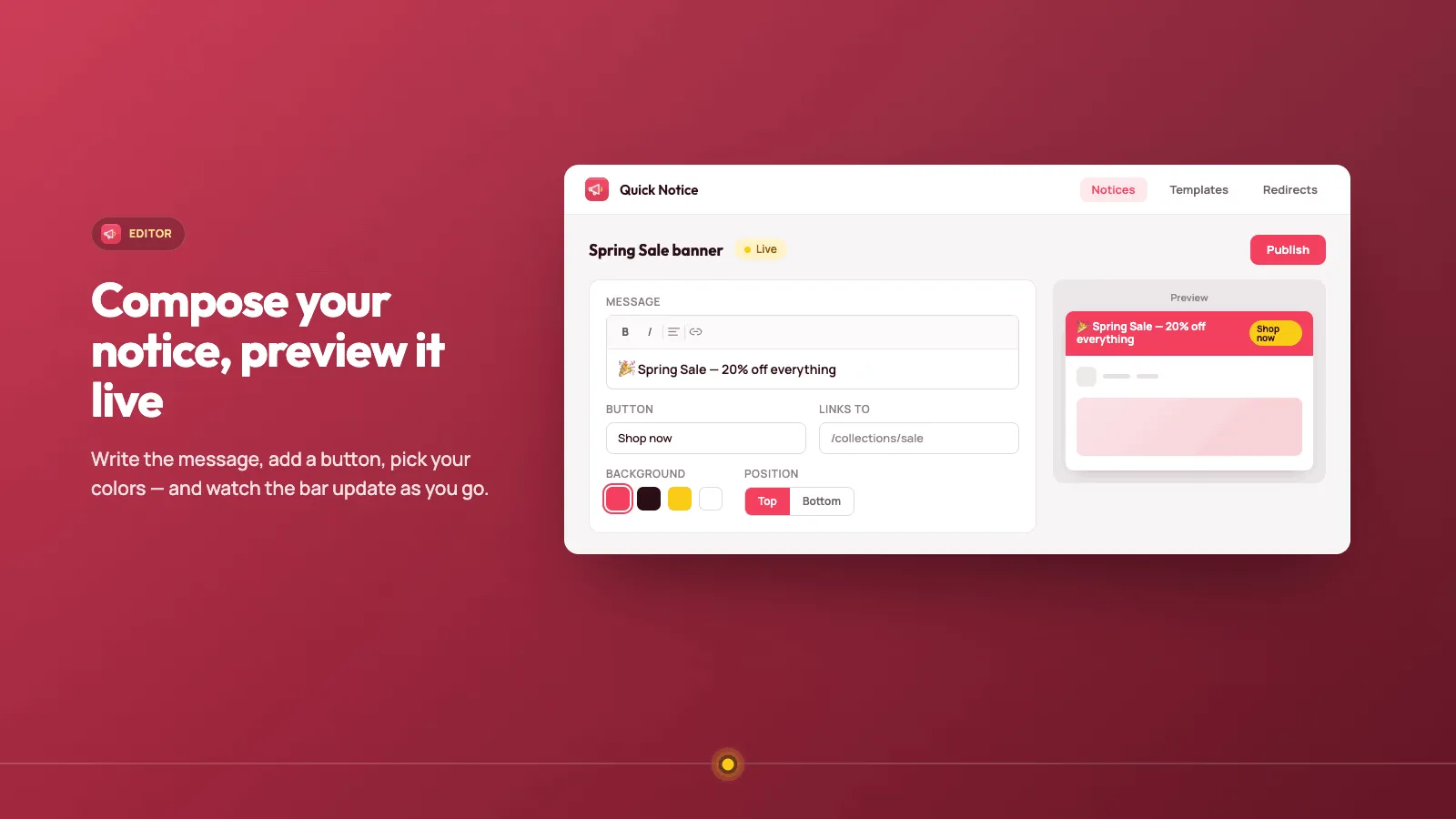
Match the colors, text, and buttons to the brand. Show the notice inline in a section, or as a popup.
Preview and templates
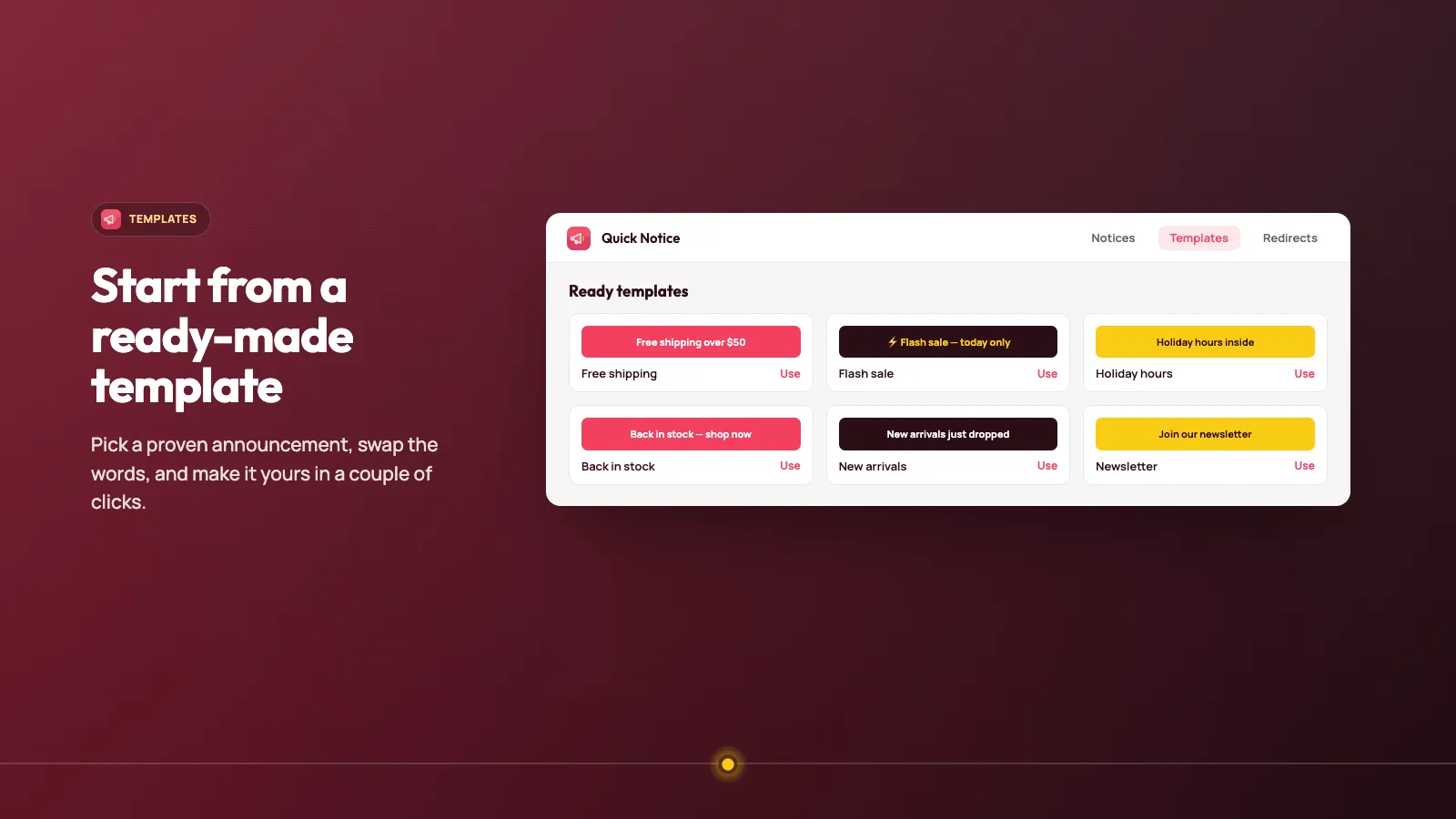
Watch the notice update as you write it, or start from a ready-made template and change the words.
The right pages
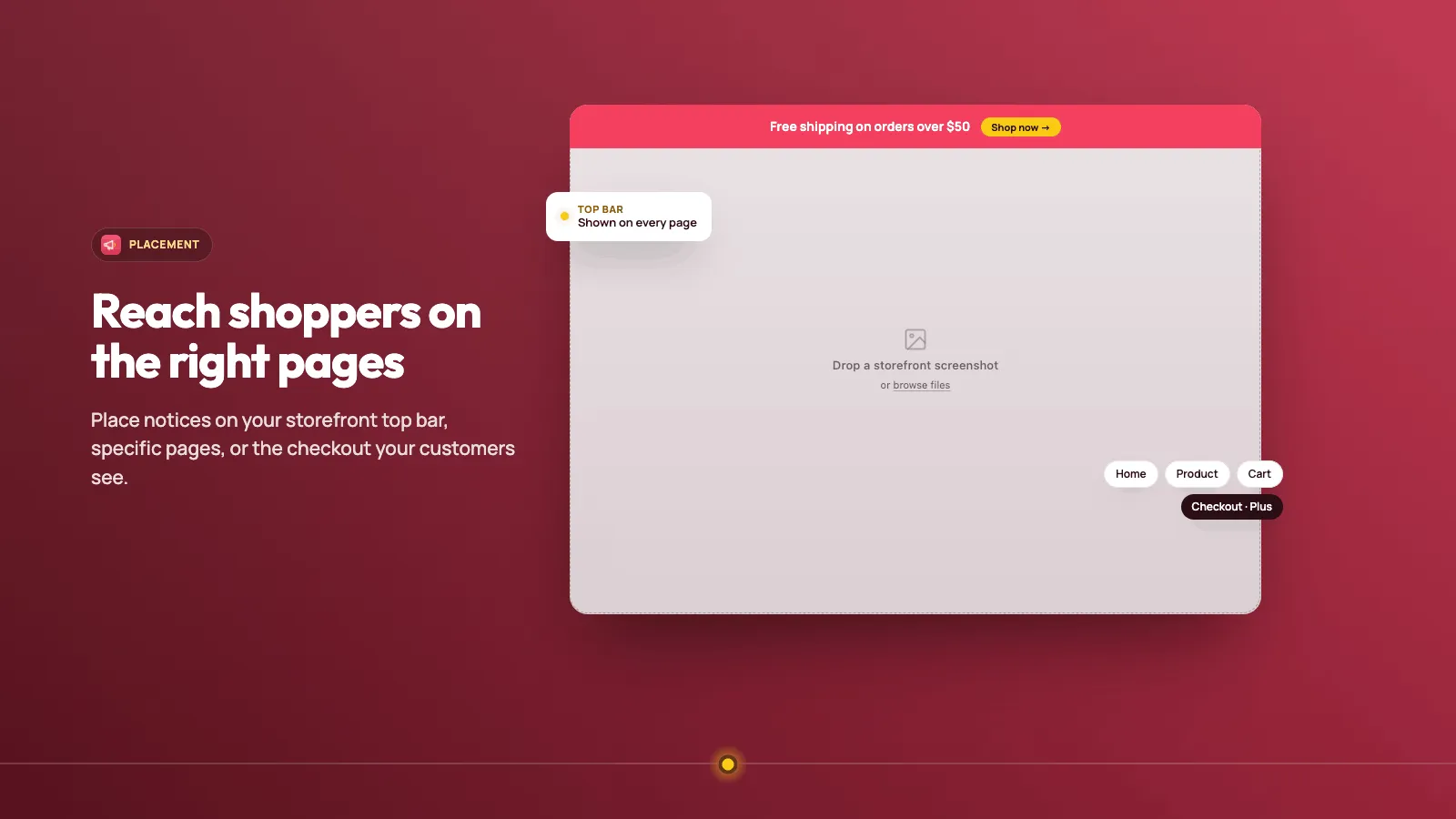
Add the block on the home page, a product page, the cart, or another section. Checkout uses its own block on a Shopify Plus store.
Checkout on Shopify Plus
On a Shopify Plus store, add the checkout block and paste the notice key.
No theme code
Add the Quick Notice block in the theme editor and paste the key. Remove the block the same way.
See it in action
Simple, transparent pricing
Plus
Popular$9 /mo
- ✓ Unlimited notices
- ✓ Country redirect rules
- ✓ $90 a year, save 17%
- ✓ 3-day free trial
What changed
Changes that matter when you use Quick Notice. A new note is added when something is ready for your store.
Buttons do what you set
- On the storefront, a button can dismiss the notice, open a link, accept tracking consent, or add products. Remove products clears the cart. The close mark closes the notice.
- Checkout buttons do the same.
A schedule you can save
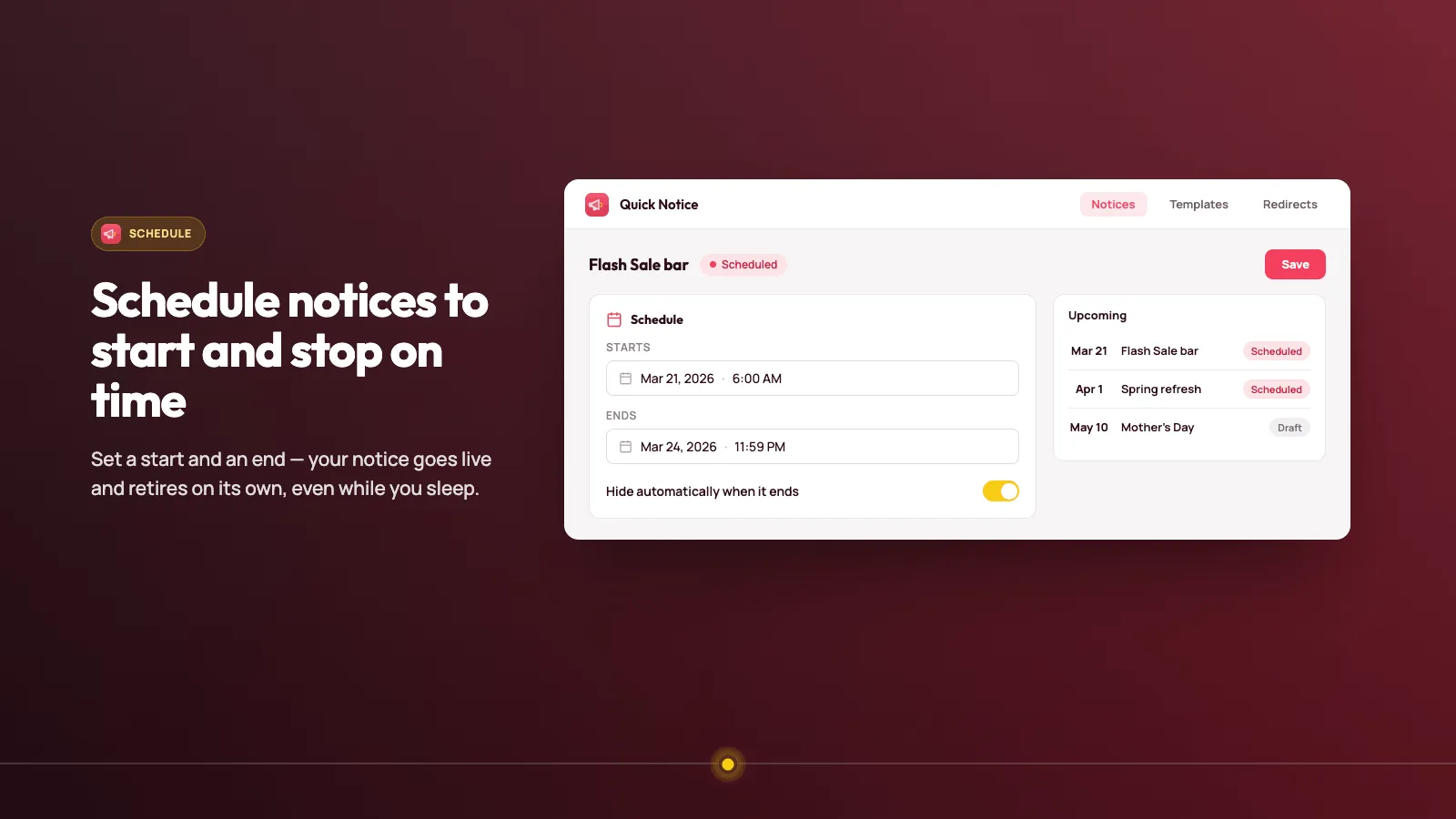
- Pick a start and an end, then save the notice as scheduled. Those dates are still there when you open the notice again.
- A new notice only offers Save as draft. Publish and Schedule appear after that first save.
See whether the app is on
- The home page shows whether Quick Notice is turned on in the theme.
- Country redirects are listed on the home page.
Remove an icon
- Remove the icon from a notice without uploading a replacement.
- Template cards are easier to scan when you start from a ready-made notice.
Country redirects
- Send visitors from the countries you choose to another store. The redirect runs automatically.
- You can keep the path they were on, and add campaign parameters to the destination.
Preview a theme or checkout notice
- The editor previews the theme notice and the checkout notice while you edit, before you publish.
Choose who sees a notice
- The editor can record a device, country, visit source, cart, or customer tag rule.
- A notice can be inline or a popup on the storefront.
Frequently asked questions
What is on the free plan? +
One notice, with the notice features included, and standard support. Plus is $9 a month, or $90 a year (save 17%), with a 3-day free trial. Plus lifts the limit on notices and adds country redirects.
Do I edit theme code? +
No. Add the Quick Notice block in the theme editor, paste the notice key, and save. Remove the block the same way.
Where can a notice show? +
Inline in a theme section, or as a popup. On a Shopify Plus store it can also show in checkout. Checkout is the store's Shopify Plus plan, not the app's Plus plan.
Can I preview a notice first? +
Yes. The editor shows a preview of the theme notice or the checkout notice while you edit. You can also start from a ready-made template.
Does a notice start and stop on the dates I save? +
You can save a start and end on the notice. The storefront does not hide it by that clock. Remove the theme block, or clear the key, when it should stop. Checkout hides a notice that is still a draft.
Does Plus catch broken links? +
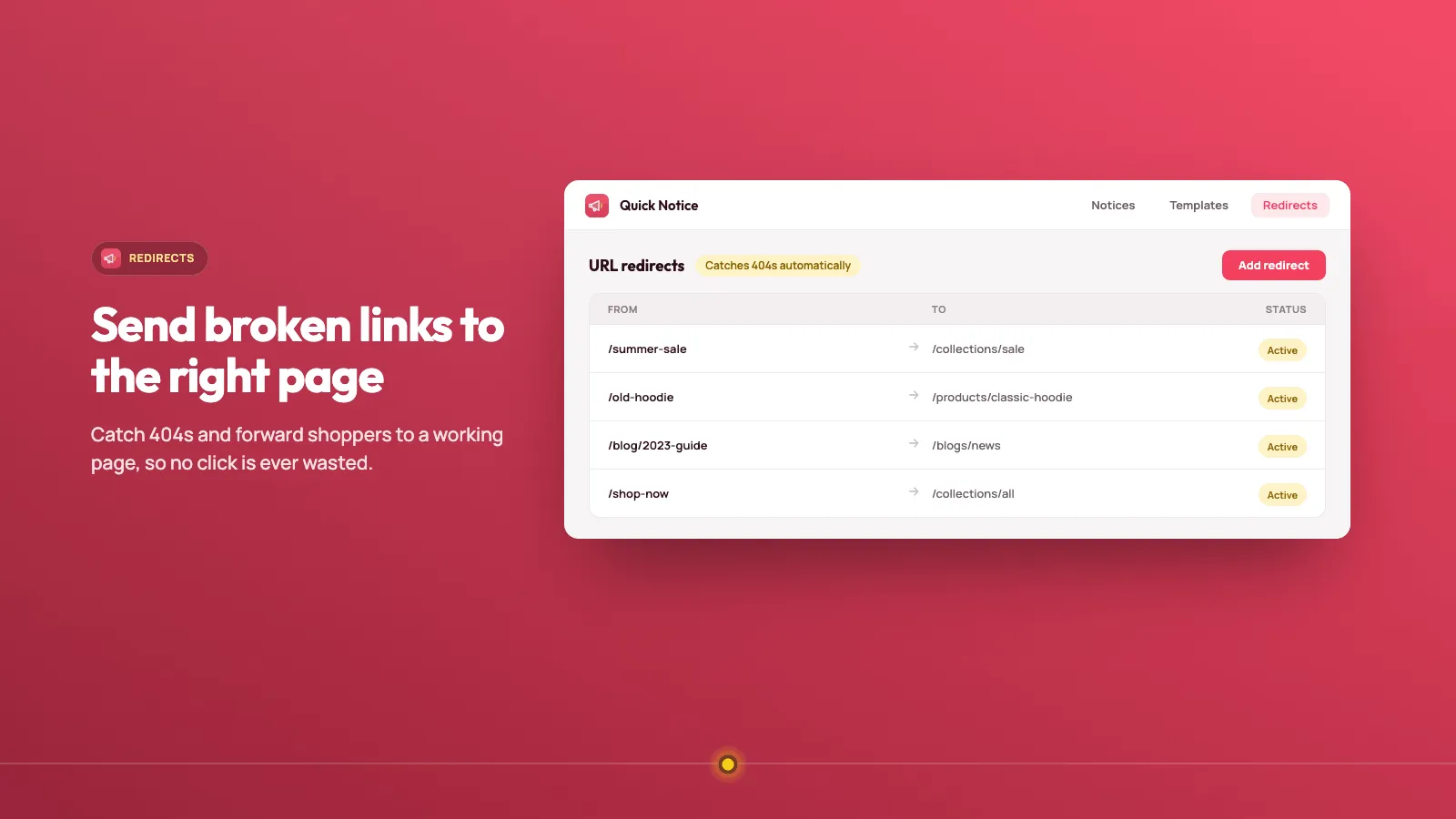
No. Plus country redirects send visitors from the countries you choose to another store. They are not a list of old paths.
The notice is saved but shoppers do not see it. +
Check the home page. The storefront app has to be on, and the visitor has to match the country, tag, cart, or device you set.
Can I send a visitor to another store by country? +
Country redirects are listed on the home page. Set the redirect there, separate from the notice text.
The checkout notice never appears. +
The notice has to be set to checkout, the app has to be on, and the cart has to match the rule.
Can I preview without publishing? +
Yes. Use the preview before the notice is public.
The notice shows on an empty cart. +
The cart rule is not set, or it matches an empty cart. Set the condition and preview again.
It shows on the storefront and I only wanted checkout. +
Change where it shows to checkout only, then preview checkout.
Ready to try Quick Notice?
Create clear alerts to keep customers informed and unconfused.